Gameplay
How to Get Warehouse Space in TCG Card Shop Simulator
Use this tcg card shop simulator how to get warehouse guide to unlock Shop Lot B, plan for rent, store reserve stock, and check employee restocking.
Updated
- Guides
- 39
- Topics
- 3
- On this page
- 6
Buy Shop Lot B for storage space
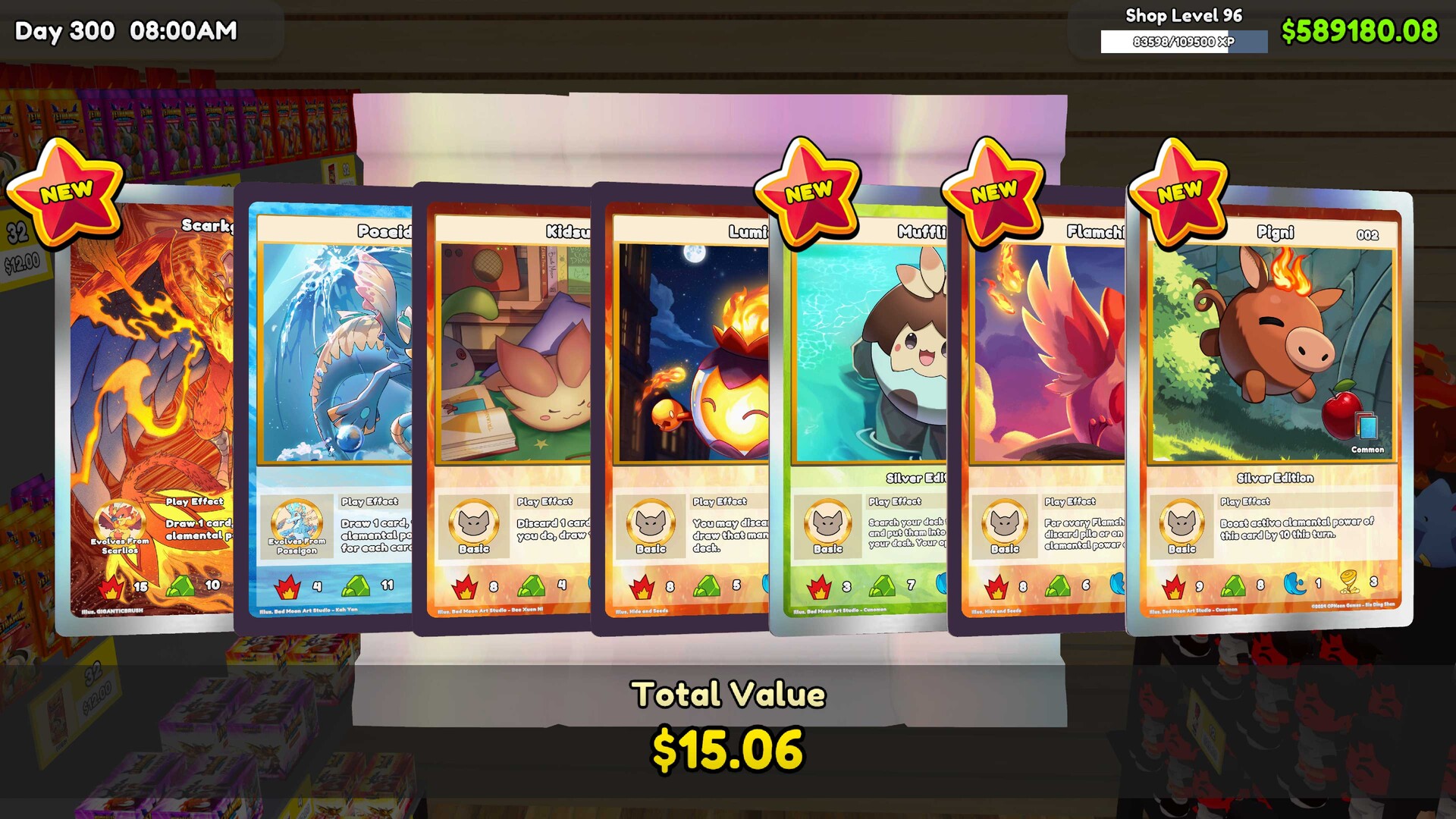
On PC, buy Shop Lot B through RENO BIGG at shop level 15 for $5,000, then open access and arrange the extra area for reserve stock. The expansion adds $150 to daily rent, and reaching the level requirement alone does not give you the space.
Budget for the expansion before buying
Shop Lot B provides additional space for storage or other shop furniture. Treat the purchase as an ongoing commitment because it also increases daily rent. Before expanding, leave yourself enough money to keep buying the stock your selling shelves need.
Decide what you want to move before you buy the space. Start with reserve stock that currently makes your main aisles awkward to use, and sketch a clear route back to the selling area. Keep some room available while you work out a layout that is comfortable to manage.
Unlock the space and start a restocking workflow
- Reach shop level 15 so Shop Lot B becomes available through RENO BIGG.
- Purchase Shop Lot B through RENO BIGG for $5,000 to obtain the additional space, with an extra $150 in daily rent.
- Open access to the purchased area so you can begin arranging its storage furniture.
- Place suitable shelving in the new area, leaving a clear route back toward the selling shelves and checkout.
- Move boxed reserve stock into reachable storage positions to separate it from the main retail aisles.
- Assign the correct product to each selling shelf so replenishment matches the merchandise you intend to sell there.
- Enable Restock Shelf for employees who should carry boxed merchandise from the expanded area.
- Observe employees travelling between storage and retail shelves to check that they can complete the replenishment route.
Arrange shelving around the route to the shop floor
Keep boxed stock in reachable storage positions and preserve clear paths back to the customer-facing shelves. The extra area is useful when merchandise can still travel to where it is sold. Check the passage between storage, selling shelves, and checkout before filling the room with more furniture.
Try grouping reserve stock according to the selling shelves it supplies. Judge that arrangement by how easily you can find the product you need and follow its route out of storage. Leave room to adjust the layout after watching it in use.
Check access when employees stop replenishing
If a selling shelf remains empty after you move reserve stock, inspect the employee's whole journey. Watch whether they can reach storage and return without being blocked by boxes, tables, customers, or a narrow doorway. Check the shelf assignment and Restock Shelf setting alongside the physical route.
- Clear boxes from the route employees use between storage and the selling shelves.
- Check doorway approaches and spaces beside tables for places where furniture or customer traffic interrupts movement.
- Confirm that the selling shelf still has the correct product assigned after rearranging your stock.
- Confirm that Restock Shelf remains enabled for the employees expected to replenish merchandise from the new area.
Separate a locked area from a blocked route
The version 1.0 notes include a fix for a customer becoming stuck in Shop Lot B while the area was still locked. Shop Lot B still has its progression and purchase requirements. When diagnosing access, check whether you have purchased the property before treating the problem as an obstruction in your storage layout.