Gameplay
Find Missing Graded Cards in Your Album
TCG Card Shop Simulator graded cards disappeared? Check the Graded album filter, pending submissions and returned parcels before reporting missing cards.
Updated
- Guides
- 39
- Topics
- 3
- On this page
- 5
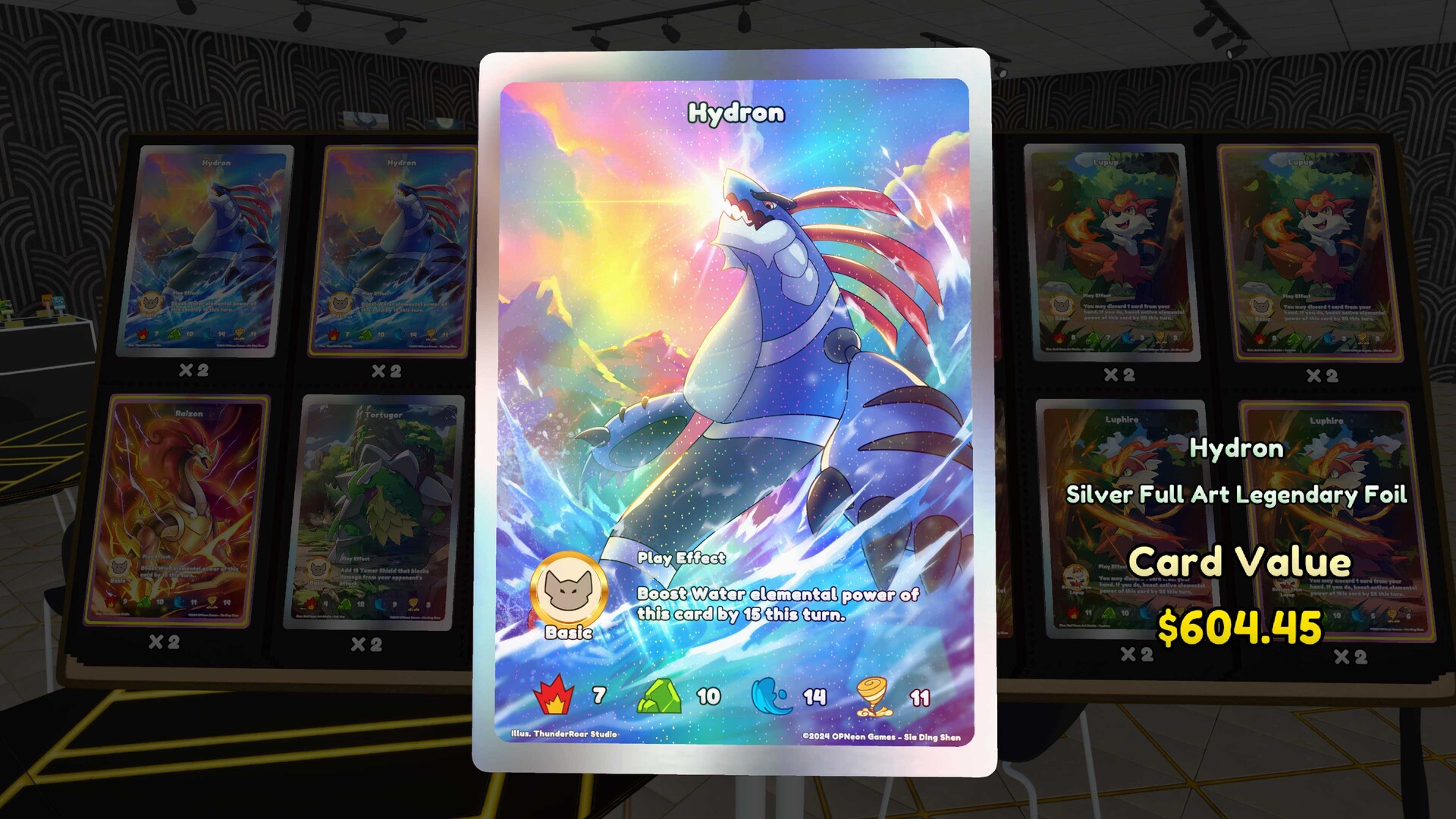
Open the album and select Graded
To find completed graded cards, open your card album or binder and select the separate Graded category using its sorting or filter control. If your submission has not returned yet, check the grading app's active submissions and quoted return time.
Trace the cards from submission to album
- Check the grading app's active submissions to see whether the cards are still being processed. Cards remain unavailable while their submission is in progress.
- Read the submission's quoted return time to establish whether you should expect the package yet. An order placed after 1 PM begins processing on the following game day.
- Inspect the returned grading package to check whether the cards are still inside an unopened parcel. Keep that parcel until you have collected its contents.
- Open the returned grading package to collect the completed cards. This takes the return through its graded-card opening sequence.
- Select Graded in the card album or binder to inspect the returned cards. Completed graded cards belong in this separate category rather than the standard ungraded collection view.
Recognize a pending grading order
A submitted card remains unavailable while grading is in progress. Check its active submission and quoted return time before treating its absence as a loss. Once the package returns, you still need to receive it and collect the cards.
The grading service supports up to four active submissions, with up to eight cards in each submission. Check the order containing the card you are looking for, especially if you have several submissions underway. Orders placed after 1 PM start processing on the next game day, so account for that timing when checking the expected return.
Check the opened cards and the Graded view
Build 1.01 changed the graded-card opening sequence so that you hold all returned graded cards when it finishes. On PC, the right mouse button can skip the entire opening sequence. When following instructions or comparing what you see, account for that change in how the completed return is presented.
For a return you have already collected, use the album's Graded category to find its cards. Searching only the normal card list can leave you looking in the wrong collection view. If the cards appear after switching to Graded, the album filter explains why they seemed to have disappeared.
Protect your save if the cards remain missing
If the cards are still absent after checking the submission, returned parcel, opening sequence and Graded album, preserve a backup of your save. Report the problem with your game build, platform and the actions that led to the disappearance. Keep the backup safe instead of overwriting the save while trying speculative recovery steps.
- Keep any unopened grading return parcel until you have inspected and collected its contents.
- Include the game build and platform in your bug report so the affected setup is clear.
- Describe the submission, package opening and album checks you performed so the disappearance can be investigated.